Configuring Networks
Wired Network
Connect an Ethernet cable to the Ethernet port on the device.
Wi-Fi Network
ViPlex Handy
- Connect your phone to the Wi-Fi AP of the device. (The default SSID is "AP+Last 8 digits of SN" and the default password is printed on the SSID label of the product.)
- Open ViPlex Handy and tap Add Device.
- On the Device Management page, search for and connect to the device. (The user name is "admin" and the default password is printed on the SSID label of the product.)
- Return to the homepage and choose Screen Management > Network Settings > Wireless Network to turn on Wi-Fi and select or add a network.
ViPlex Express V4.0.0
- Select the target screen under My Screens.
- Choose Monitor & Control > Network > AP.
- Do the following as required.
- AP Hotspot: Turn on/off the Screen's Wi-Fi AP.
- Hotspot Name: The hotspot name can be modified.
- Hotspot Password: Change the screen’s Wi-Fi AP
password.
For example, the default SSID of the Taurus is "Model+Last 8 digits of SN", and the default password can be found on the SSID label on the device.
- Show More > Isolate from Local Network: When this option is enabled, the screen's Wi-Fi AP can be isolated from the local network, preventing users from accessing the screen's local network via the Wi-Fi AP connection.
- Show More > Channel: Select Automatic or a channel from the drop-down menu.
Figure 1. Screen Wi-Fi AP configuration 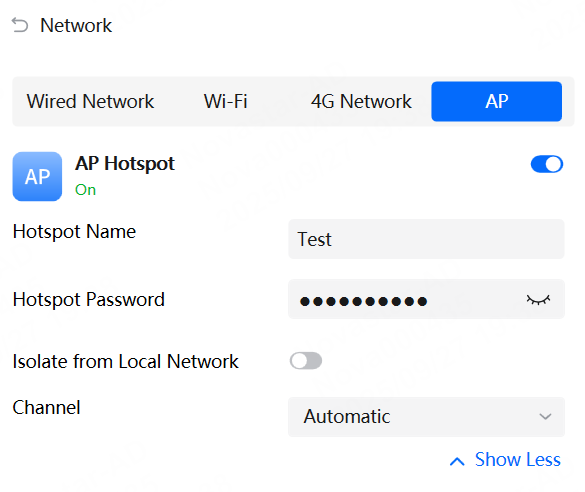
- After the configuration, click
Apply.Note:When connecting to the screen AP, if both the AP and connection password are changed simultaneously, the AP will disconnect, and the screen will go offline, leading to a failure in changing the connection password.
ViPlex Express V3.0.5
- Open ViPlex Express and connect to a device (The user name is "admin" and the default password is printed on the SSID label of the product.)
- Choose Control > Network configuration.
- Select the target device from the device list.
- Go to the Wi-Fi Network tab page and do the following as needed.
- AP: Turn on/off the device Wi-Fi AP.
- Hotspot Name and Password: Change the SSID and password of the device Wi-Fi AP. (The default SSID of the Taurus series and EMP400B is "AP+Last 8 digits of SN" and the default password is printed on the SSID label of the product.)
- Isolate from Local Network: After enabled, the Wi-Fi AP of the device is isolated from the local network and users cannot access the local network by connecting to the Wi-Fi AP.
- Advanced > Channel: Switch the channel of the
Wi-Fi AP.
The channel can be switched when the terminal software is V2.2.0 or later.
Figure 2. Player Wi-Fi AP configuration 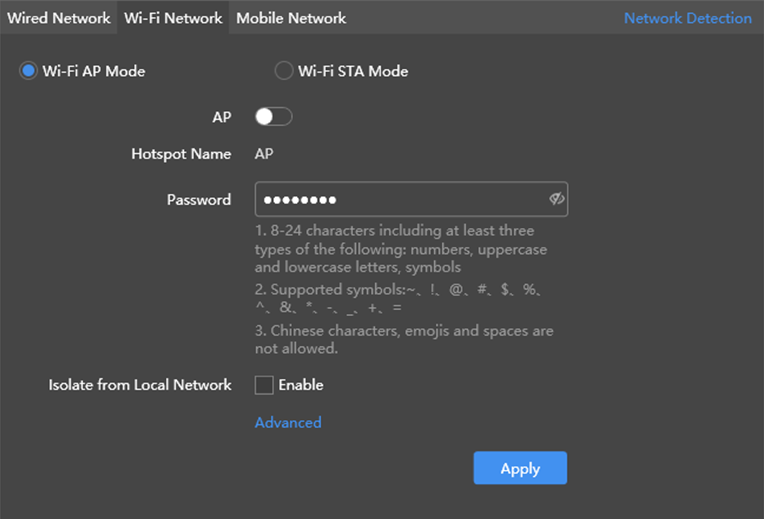
- Click Apply.