Associate Screens with Tags
Scenarios
Create screen tags and associate screens with tags which can be used for quick filter and intelligent tag matching.
Operating Procedure
- From the menu bar, choose Screens > Screen List.
- Select one or more screens and click Associate Tag.
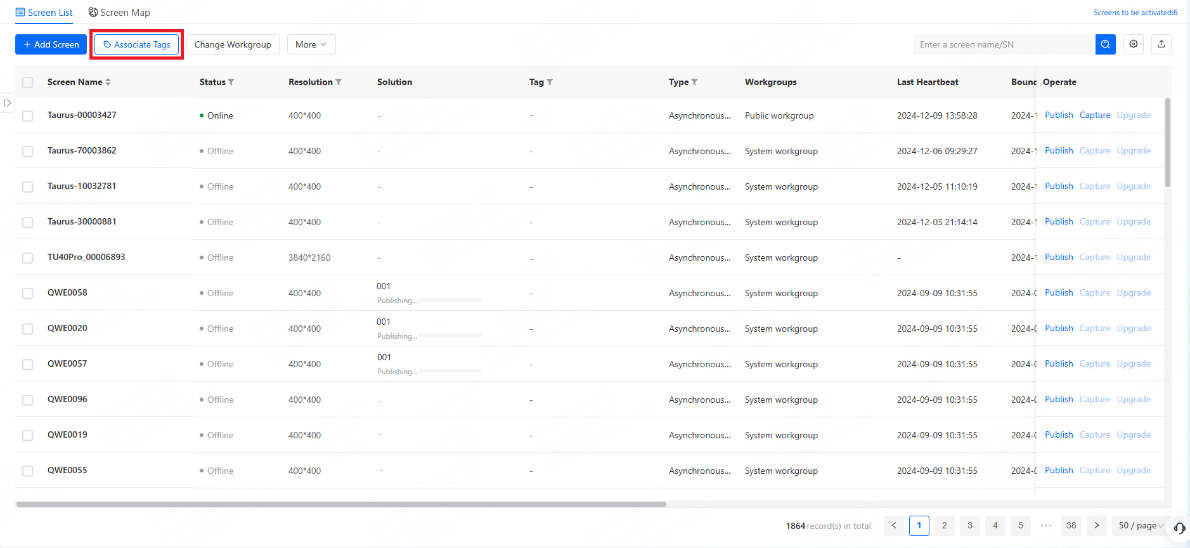
- From the Tag window that appears, add, associate, delete, and edit
tags.
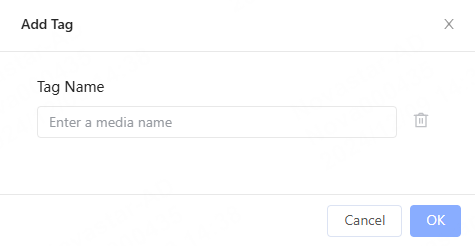
- Add tags: Click + Add Tag. In the popup window,
enter a desired tag name and click OK to add a
tag. To add multiple tags, you can press Enter on
your keyboard to create new lines.
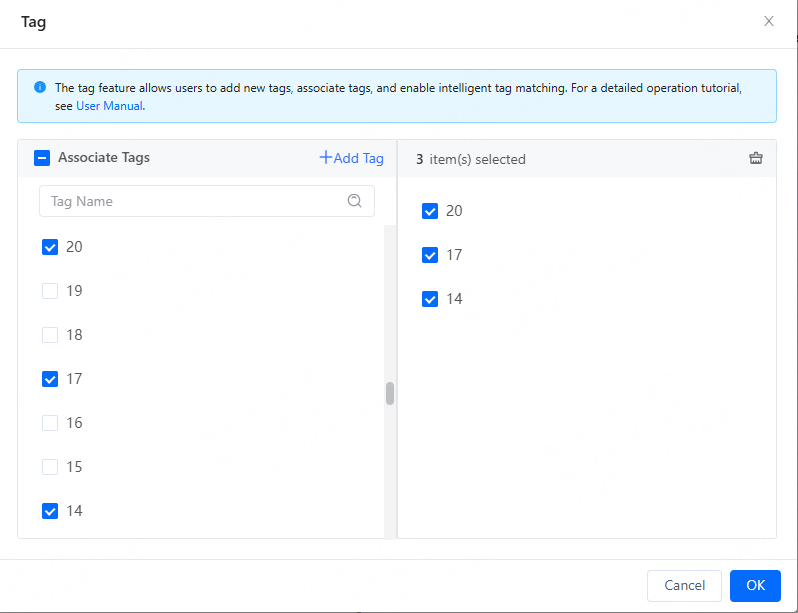
- Associate tags: From the Tag window that appears,
select tags and click OK to associate the screens
with the selected tags.
- Delete tags: From the Tag window, hover your
mouse over a tag and click
 and then click
OK from the displayed dialog box to delete
it.
and then click
OK from the displayed dialog box to delete
it.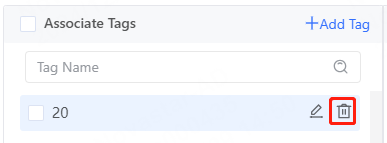
If the current tag is associated with screens/media, deleting the tag will simultaneously remove the association.
- Edit tags: From the Tag window, hover your mouse
over a tag and click
 to edit it.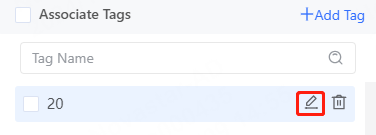
- Add tags: Click + Add Tag. In the popup window,
enter a desired tag name and click OK to add a
tag. To add multiple tags, you can press Enter on
your keyboard to create new lines.