Time Synchronization
Scenarios
Specify rules for player time synchronization to sync time for players.
Related Information
| Method | Applicable To | Time Reference | Description |
|---|---|---|---|
| Manual | Taurus | Selected time zone | After you select a time zone, the new time will be displayed. |
| NTP |
|
NTP server | Click  to customize a
server. to customize a
server. |
| RF (Radio Frequency) | Taurus | Reference device |
Users need to buy and install RF devices. The time of slave devices is kept in sync with the master (reference) device via RF signal. The time of the master device can be synced with the NTP server as needed. |
| GPS | Taurus | Selected time zone | After you select a time zone, the new time will be displayed. |
Operating Procedure
- From the menu bar, choose Control.
- Click Time Synchronization.
- On the left of the page, select the target online player.
- Do any of the following as needed.
- Manual: Select a time zone and click Apply.
- NTP: Select a server and time zone, and then click
Apply . You can click to
customize a server.
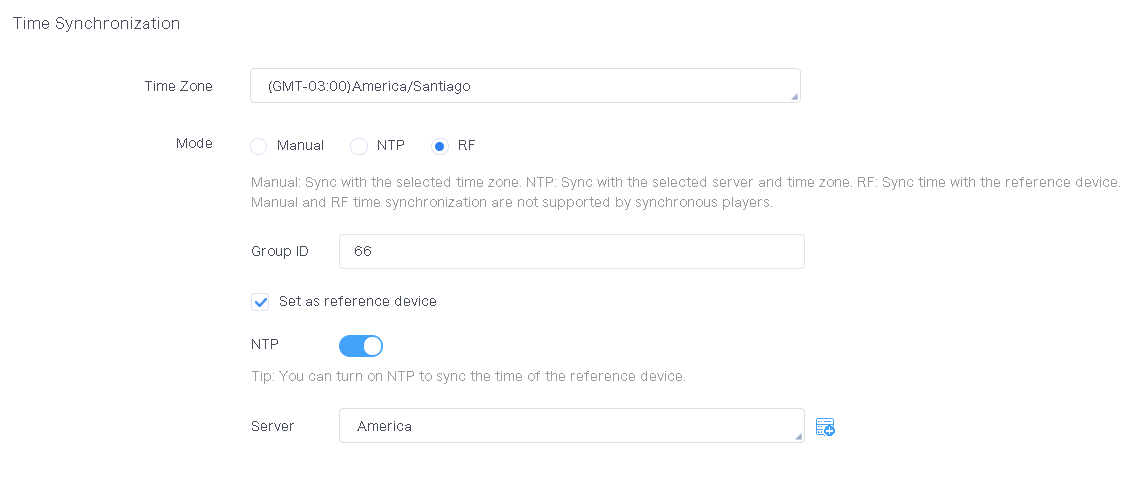
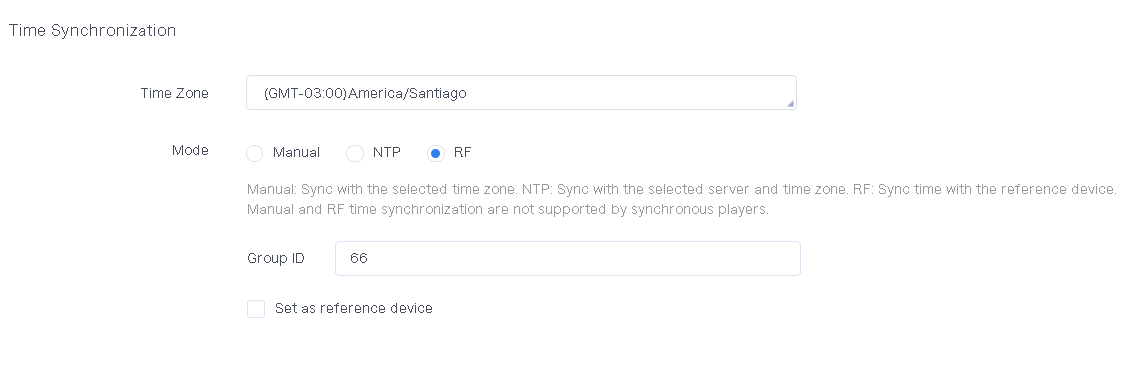
- RF: Specify a group ID, set the current device as the master device or
slave device, and then click Apply.
- Master device: Select Set as reference
device. The time of the master device can be
synced with the NTP server. If the NTP time synchronization of
the master device is not enabled, the time of the master device
will be synced with the selected time zone.
- Slave device: Enter the group ID of the master device for a
slave device. The slave device will be assigned to the same
group as the master device.
- Master device: Select Set as reference
device. The time of the master device can be
synced with the NTP server. If the NTP time synchronization of
the master device is not enabled, the time of the master device
will be synced with the selected time zone.
- GPS: Select a time zone and click Apply.